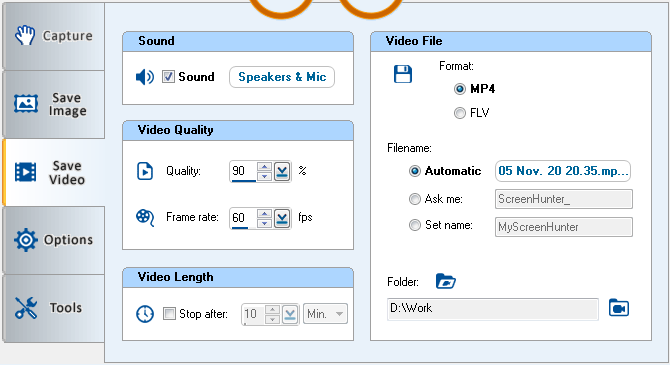
| Save Video Tab | |
The
Save Video tab lets you
change the settings for the recorded video file.
Sound
Group
 Sound
Sound
Check to add sound to the recorded video. Click the Settings button on
the right to assign and change.
Sound Settings dialog
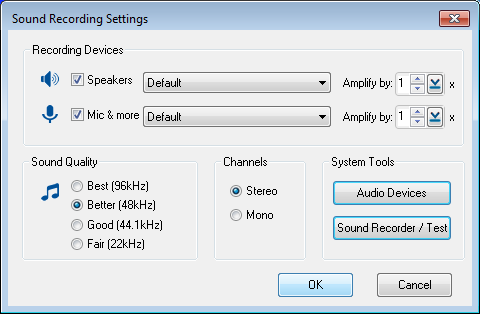
Recording Devices
Group
Add recording devices of your choice.

Speakers
Check to add to record from a playback device, such as speakers.
 Mic & more
Check
to add to record from a microphone or other devices.
Amplify by –
volume will be boosted by x times. 1 means no boost.
Sound Quality
Group
Choose sound quality from
Best, Better, Good and
Fair.
Channels Group
Choose from Stereo and Mono.
System Tools
Group
Use these tools provided by Windows.
Audio
Devices –
show the Sound dialog of Windows Control Panel.
Sound
Recorder / Test –
show the Windows Sound Recorder if available.
Video
Quality Group
 Quality
Set recorded video quality. The range is from 1 to 100, 1 being the
lowest and 100 being the highest.

Frame rate
Frame rate is set in
FPS (Frames Per Second), which is the number of frames recorded per
second. The supported range is from 1 to 100, 1 being the lowest and
100 being the highest.
Video
Length Group
 Auto-stop
Stop recording at a given length and save to a video file.
Video File Group
Choose the video file options.
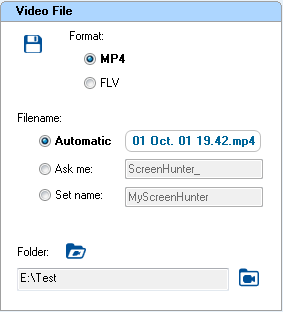
Format
MP4
– Save to an MPEG-4 video file.
FLV -
Save to a Flash video file
Filename has 3 choices: Automatic,
Ask me or Fixed name. They have the same meanings and
operations as those of the image file above.


