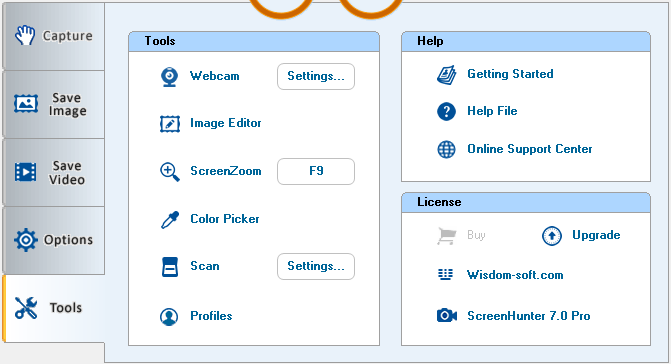
| Tools Tab |
The Tools tab provides
more useful tools.
Tools
Group
 Webcam
When you have a webcam installed, ScreenHunter can capture your webcam image or
record your webcam to a video. When the webcam is visible on your screen, click
anywhere on the webcam to move.
Click this button to show. Press again or
Esc
to exit. Right click on the webcam image to show more options.
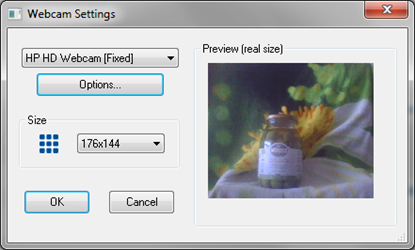
Click on the Settings… button
on the right to show the Webcam Settings
dialog.
You can pick a webcam from the top-left drop-down list.
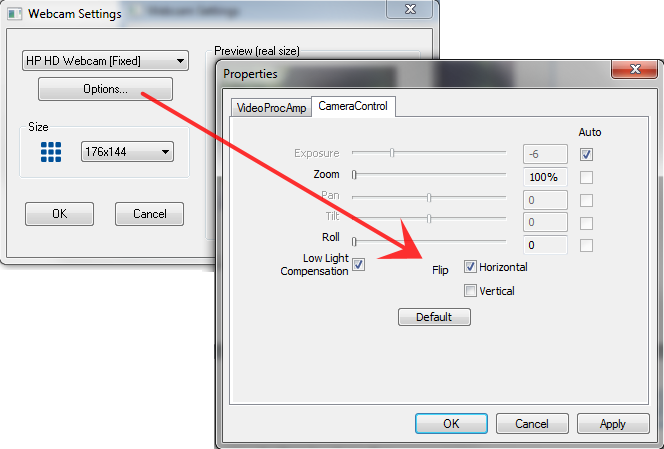
Click the
Options… button to choose more options for the webcam.
 Properties
are webcam dependent and different webcams have different
property dialog boxes. Therefore, some properties may not be supported,
such as Horizontal Flip.
Properties
are webcam dependent and different webcams have different
property dialog boxes. Therefore, some properties may not be supported,
such as Horizontal Flip.
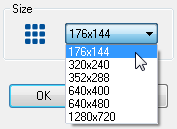
Choose a supported webcam size from the Size drop-down.

Show Image Editor where you can modify and alter any image. Refer to the next
section for more.
 ScreenZoom
ScreenZoom magnifies
your screen and enables you to draw on it. When using ScreenZoom with a hotkey,
it zooms to the quadrant where your mouse is situated.
This can be
integrated into your presentation, discussion and training sessions, etc. You
also can "freeze" the screen and directly draw on it by using
ScreenDraw.
Right-click or press Esc to cancel.
Click on the Hotkey button
on the right to show the ScreenZoom
Settings dialog.
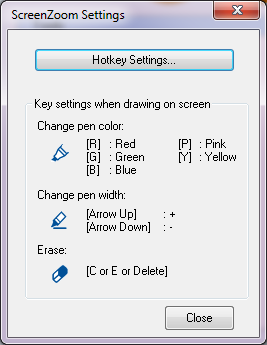
Click on the Hotkey Settings button
on the dialog to show the Hotkey Setttings dialog, which is the same as when you
click the Settings… button in the
Hotkeys group on the
Capture tab.
Change pen color:
You can press these keys on your keyboard
to change the pen color
when it is in the ScreenZoom or ScreenDraw mode.
Change pen width:
You can
press the arrow keys on your keyboard to change the pen width when it is in the
ScreenZoom or ScreenDraw mode. The width can be between 2 to 14 pixels.

Show Color Picker.
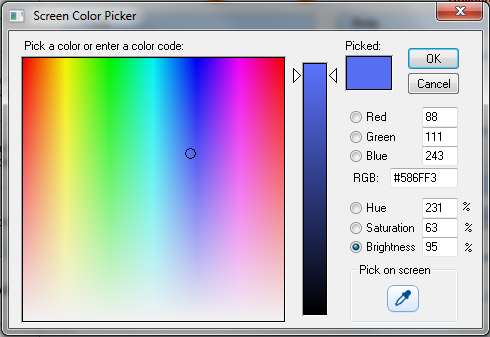
 For
a screen-wide color picker, in the
Pick on screen group, hold
this button down and drag the mouse to pick a color anywhere on the screen.
For
a screen-wide color picker, in the
Pick on screen group, hold
this button down and drag the mouse to pick a color anywhere on the screen.

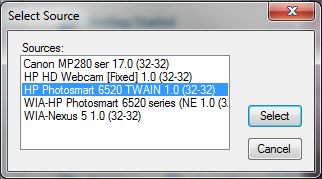
Scan an image from the scanner selected on the right.
 Click
Settings… to select your scanner.
Click
Settings… to select your scanner.
The Sources list will show the scanner drivers installed on the PC.

Show the Profile Manager dialog. Profiles save all current settings to a
location you can access later to create the same capture effect.
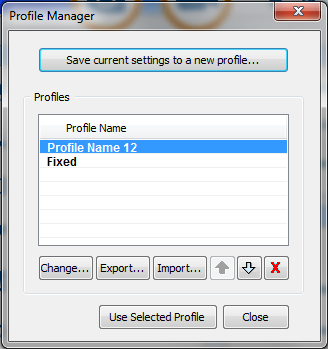
 Save current setting to a new
profile…
Save current setting to a new
profile…
The currently selected settings on the tabs will be used to create a profile
with your name choices.
You may select a profile,
Change the profile name and Export to a file, or Import from
your hard drive.
Profile files are in XML format.


You may click the Up and Down buttons to change the order.

Click to delete a profile.
Help
Group
 Getting
Started
Getting
Started
Show the short guide of the external HTML file.
 User Guide
Show the external ScreenHunter help file.
 Online Support Center
Go to the online Support Center on the web.
License Group
 Buy
Buy
Show the license key dialog and enter your purchased license key.
If it has been licensed, this link will be grayed out.
 Upgrade
Go to the latest download page on web.
 Wisdom-soft.com
Go to the Wisdom software website.
 About ScreenHunter 7 Pro
Show the About box.


