|
|
LL-Decomp
is designed to have most tasks automated that requires minimum human
intervention.
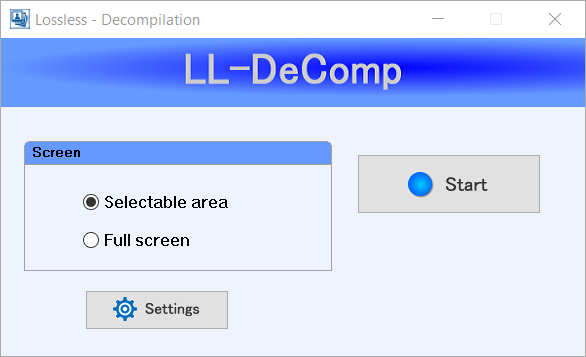
You
may choose between "Selectable area" and "Full screen".
When you are
ready to record and process, press “Start”. When it started, the button will be
changed to “Stop” that you can press to stop recording and it will process the
rest automatically.
LL-DeComp will stop recording and start processing automatically when the recorded AVI file size reaches 2GB which is the maximum file size limit. The recording time will depend on how big the screen size you select to record.
Settings Dialog
This is where you can change options and choose your preferences.
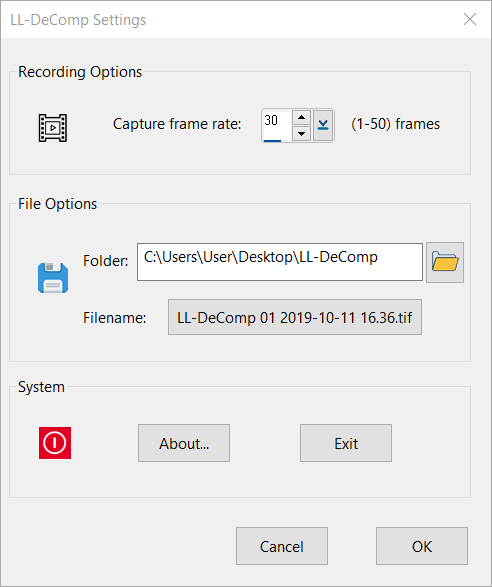
You may choose Capture frame rate between 1-50 frames per second.
You may use the folder picker to choose where you want your final image files (TIFF) to be saved. The default folder is “LL-DeComp” folder on your Desktop.
Filename Dialog
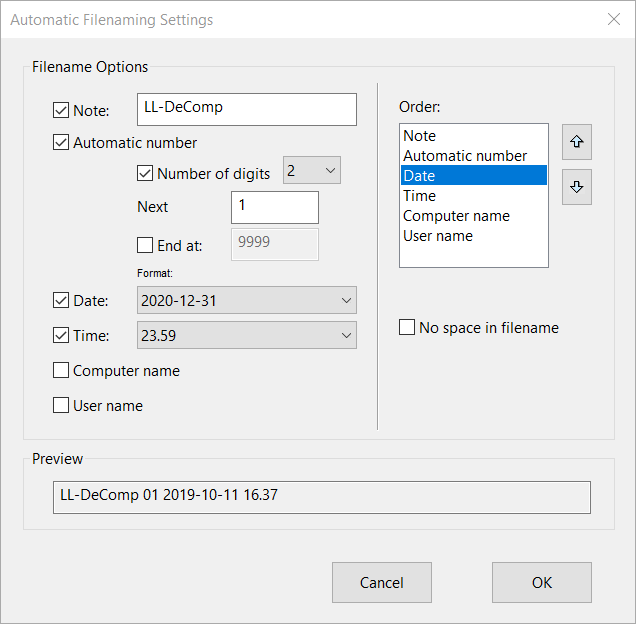
Use this dialog to change how the final image file names are formatted. The filename will be shown on the Settings dialog Filename button face.
Results
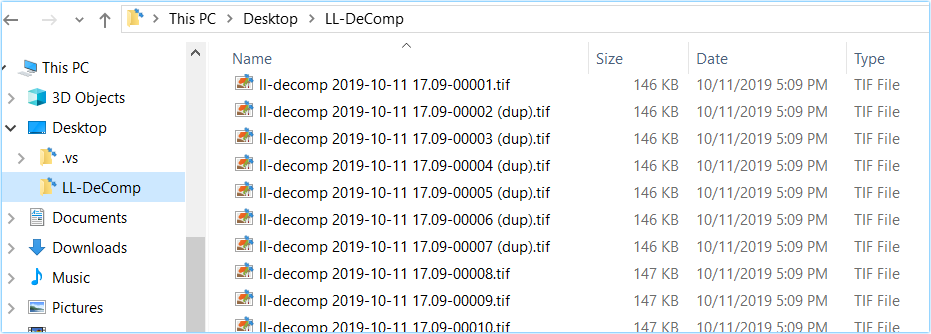
When the
processing is finished, all image files are listed in your folder with your
filename + ##### as the frame number. When there is no change in the image, it
will mark “(dup)” in the filename.
E.g. the following 2nd frame image:
“ll-decomp 2019-10-11 17.09-00002 (dup).tif” is exactly the same as the first
frame image:
“ll-decomp 2019-10-11 17.09-00001.tif”.