 How is a product licensed? What does 'licensed' mean?
Our software is licensed in a "try before you buy" fashion. All our paid versions have a fully functional trial period.
When you buy a license, a license key will be emailed to you. There is no need to reinstall, only enter your license key.
As a registered user, you will get:
-
A license key that will remove all "Unlicensed" and "Expired" stamps, and unlock the features immediately.
-
The purchase is a one-time only charge, no recurring and no annual fees required.
It covers all minor upgrades. How to buy coverage for major upgrades?
-
Free high priority technical support for 3 months.
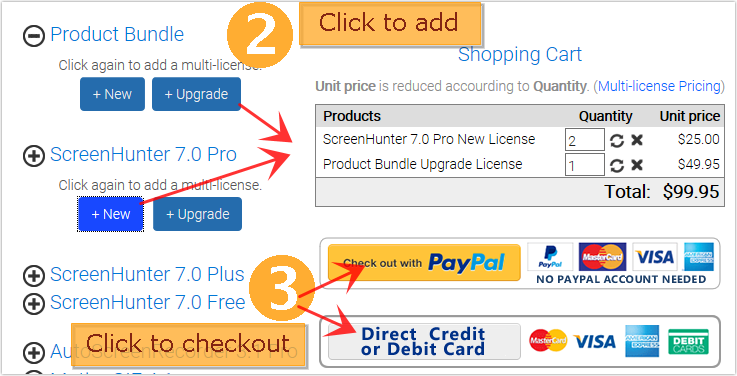
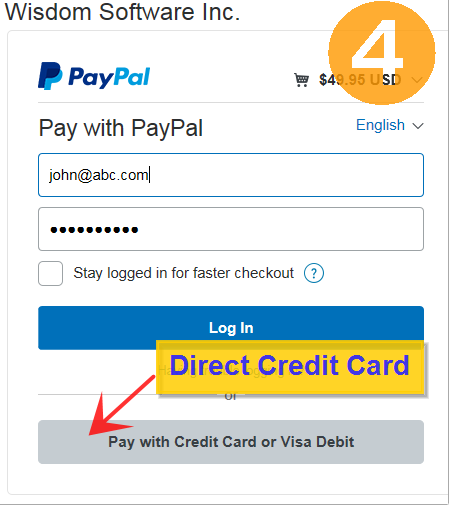
Buy Now
What is your refund policy?
All our paid versions have a fully functional trial period before you buy.
You have plenty of time to evaluate and you should not buy unless you are happy with it.
A refund will not be granted after a license key is issued. This is a common practice in most packaged software and CD-ROMs packed in the back of a book.
I lost my license key, how can I get it again?
We use a registered user database to manage registered users. You can email
with your name, email address, the date and the products you purchased.
We will email you your license keys again.
I need to install on more than one PC. How does a multi-license work?
A single license allows you to install on one PC only. A multi-license is required to install the software on a network or use it on more than one PC.
A multi-license is an economical way of buying licenses for your organization, network, or family PCs.
The number of multi-user licenses is determined by the total number of PCs and logins that have the software installed.
For example, if your company has total 50 PCs (including workstations, terminals and laptops), 20 PCs will the software installed, and there are 40 people using these 20 PCs, then it will need a 800 multi-license (20x40).
For orders of 50 licenses or more, a
site license package can be issued. There are no license keys required to enter in a site license package.
Pricing
What is a site license? Major upgrade coverage? Low price annual fee model?
If you order 50 multi-licenses or over, we can ship a site license package.
A site licensed package is that you can install with no license keys required to enter.
The fastest way to get your package is to order online. We take POs for site licenses.
A maintainance package can be purchased for any multi-licenses that includes a major upgrade coverage. The cost is 25% of your purchase price annually. It will cover all major upgrades indefinitely.
For orders over 200 licenses, you can purachse with an annual fee model, which allows you to pay a lower fee each year to license the products.
with how many licenses you need.
How do I move my copy to a new computer?
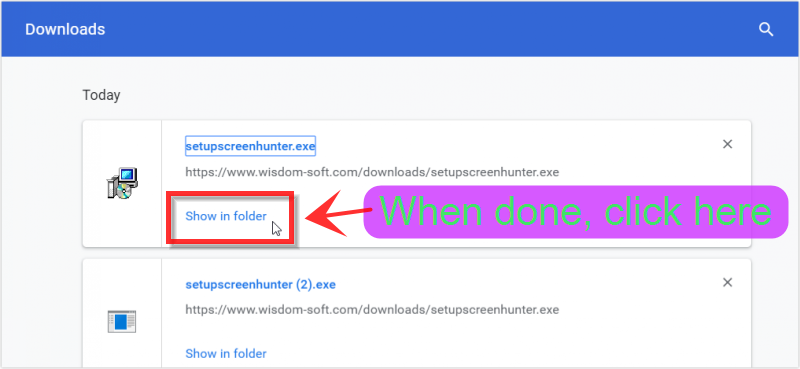
First, delete all the copies on the current computre. Then, download a new setup package to install on the new computer.
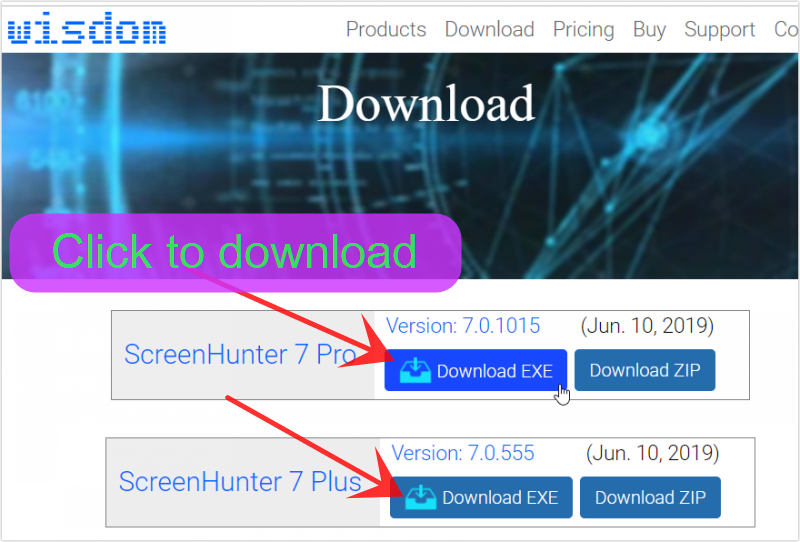
The latest versions of our software are always ready for download from the
download page. Download and install the software and use the license key you already have to unlock it.
If you lost your license key,
your order information with your name, email address and purchase date. We will send the license key after verifying your registration.
How do I show file extensions?
[On Windows Vista and Windows 7 & 8]
-
Click Start.
-
Type folder options. Click the line Folder Options that appears at the top of the Start menu.
-
Click the View tab at the top of the Folder Options dialog.
-
In the Advanced settings group, click to uncheck Hide extensions for known file types.
-
Click OK.
[On Windows 10]
-
Click Start.
-
Type folder options. Click the line File Explorer Options that appears at the top of the Start menu.
-
The rest is the same.
 Image file details
What is on the CD-ROM?
The CD-ROM will have all our products and supporting documents. That is, all setup packages, PDF manuals and step-by-step guide videos. You can also download all these files from our website on the download page.
Basically, the CD-ROM is optional. Many users often just need to order the license key which we will email to you after your order is processed.
What's main features in ScreenHunter 7?
These are some of the new and enhanced features in ScreenHunter 7:
New Screen Recorder
-
Newly designed screen recorder for high quality recording
-
Save videos to MPEG-4 or FLV, which have no size limit
-
Record webcam anywhere with flexible sizes
New & Enhanced Capture Features
-
It supports full screen capture up to 8K for multiple monitors and records 4K videos for a single monitor.
-
Capture while you’re recording the screen
-
Capture covered or hidden windows
-
Schedule multiple captures or record any time you set up
-
A combination of a bitmap image editor and vector object editor
On top of capturing as a bitmap, you can add drawing objects such as text, arrows and bubbles that you can keep editing
Other New and Enhanced Features
-
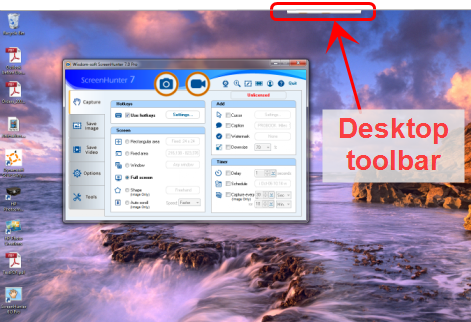
New desktop toolbar for easy access
-
Magnify your screen, draw directly on the screen on your presentation
-
Save your choices to profiles for easy portability
-
Fast and native compatibility with Windows 7, 8 & 10
How do I get rid of the text on my capture and video?
ScreenHunter 7
You can check on/off the
Caption in the
Add group on the
Capture tab.
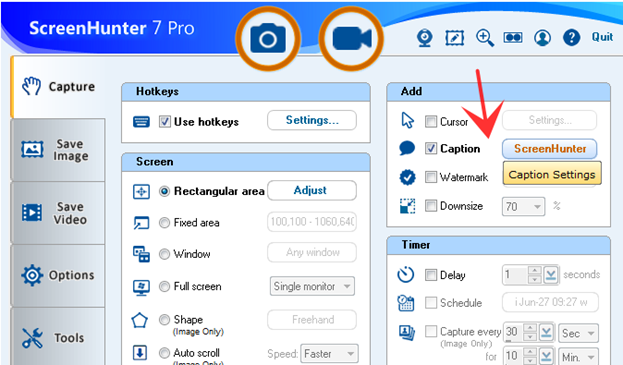
You can click the settings button on the right to change the format of the text appearing on your capture or video.
ScreenHunter 6
You can check on/off the
Caption in the
Add Effects group on the
To tab.
How do I cancel a capture or recording?
ScreenHunter 7
-
Before it has started,
right-click the mouse button to cancel.
-
When capturing or recording,
-
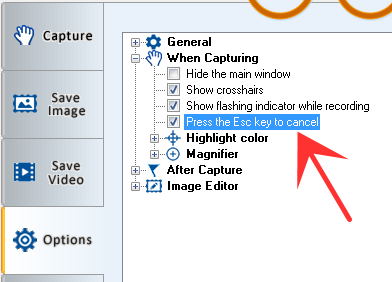
If Press the Esc key to cancel in the When Capturing group on the Options tab is checked:
Press the Esc key on your keyboard to cancel.
-
If Press the Esc key to cancel in the When Capturing group on the Options tab is NOT checked:
-
For images, right-click to cancel.
-
For videos, press the Record Now button to stop. Or, press the Stop recording hotkey again if a hotkey is used.
ScreenHunter 6
Right-click the mouse button to cancel.
When you have started capturing or auto-scrolling, press the
Esc key on your keyboard to cancel.
To cancel auto-capturing,
-
Press the hotkey again
-
Open the main ScreenHunter screen and press the Stop button in the Timer group on the From tab
-
Press the Stop button on the toolbar in Image Editor.
Are multiple monitors supported?
ScreenHunter 7
For capturing an image, multiple monitors are automatically supported in ScreenHunter 7. For recording a video, only the main monitor can be recorded, not a secondary monitor.
It supports full screen capture up to 8K for multiple monitors and records 4K videos for a single monitor. It can support frame rate up to 100 fps.
ScreenHunter 6
Check Multiple monitors in the Add group on the From tab.
Why does auto-scroll not scroll my window?
ScreenHunter scrolls down windows or webpages, starting from the current position, while capturing.
Scrolling is application dependent, so auto-scroll may not work with all applications, such as windows that have constantly changing content.
The scrolling speed also depends on the machine and content of the window. You may need to adjust the scrolling speed.
 Step-by-step video guide
What's the file format ScreenHunter 7 uses to save the video, and why?
ScreenHunter 7 saves a recorded video as a standard MPEG-4 file, .MP4. MPEG-4 files can achieve professional quality for publishing. The MPEG-4 format is the most common video file format worldwide.
MPEG-4 does not have a size limit, so as long as you have space on your hard drive you can keep recording.
ScreenHunter 7 can also save the video to a Flash Video File, .FLV.
How does recording quality affect my recorded videos?
On the
Save Video tab, in the
Video Quality group, video quality can be set from 1 to 100%, with 1 being the lowest and 100 being the highest.
Frame rate also plays a role in quality when you play back the recorded video. The supported range is from 1 to 100 frames per second (fps), with 1 being the lowest and 100 being the highest.
The higher the quality, the bigger the recorded video file size. Depending on your PC speed, setting a higher quality factor may actually reduce the recorded video quality.
 Should my recording quality always be 100%?
What is a profile?
A profile is a collection of settings you choose on the tabs, including options. You can name a profile and save to a location you can access later to create the same capture or record effect.
Profile details
I'm a developer, what are ScreenHunter Pro command line options?
ScreenHunter program location after installation
{Your system drive}\Program Files (x86)\ScreenHunter 7.0 Pro\
Command line switches
| Command |
Details
|
| /{image file path} |
To load an image in Image Editor automatically. |
| /C |
Execute Capture Now right away using the current settings.
It's the same as pressing the Capture Now button.
|
| /CX |
Execute Capture Now and Exit ScreenHunter. |
| /D |
To run more than one instance of ScreenHunter.exe
Note: This may cause one ScreenHunter to keep updating the other ScreenHunter instance because they read the settings from the same Windows Registry. It's only for advanced users to use temporarily.
|
| /V |
Execute Record Now right away using the current settings.
It's like pressing the Record Now button.
|
| /VX |
Execute Record Now and Exit ScreenHunter. |
| /X |
Exit ScreenHunter if found. |
| /R |
To reset all options to the initial default values. |

Make sure ScreenHunter is not running when using these commands.
What is a codec, lossless?
A codec is a piece of software that compresses and decompresses video (often called coding and decoding). It converts uncompressed video to a compressed format to make the video file smaller.
Lossy file compression results in lost data and quality from the original video.
With lossless codecs, all the video information is kept when the file is compressed. When played back, it will show the original quality with no loss at all. Wisdom-soft lossless codec - WisCodec, is a fast lossless codec.







 Search